
Introduction
React applications should feel fast and smooth. But sometimes, when a component has heavy rendering work, the UI may feel slow. For example, when a user types in a search box and React also filters a large list at the same time, typing can become laggy. This is where React useTransition becomes useful.
The React useTransition hook helps you tell React which state update is urgent and which state update can wait for a short time. Urgent updates, like typing in an input box, should happen immediately. Non-urgent updates, like filtering a big list or switching a heavy tab, can be handled in a transition.
In simple words, React useTransition helps keep your UI responsive while React works on slower updates in the background. According to the official React documentation, useTransition lets you update state without blocking the UI, and it returns isPending and startTransition.
In this blog, we will understand React useTransition step by step with beginner-friendly examples.
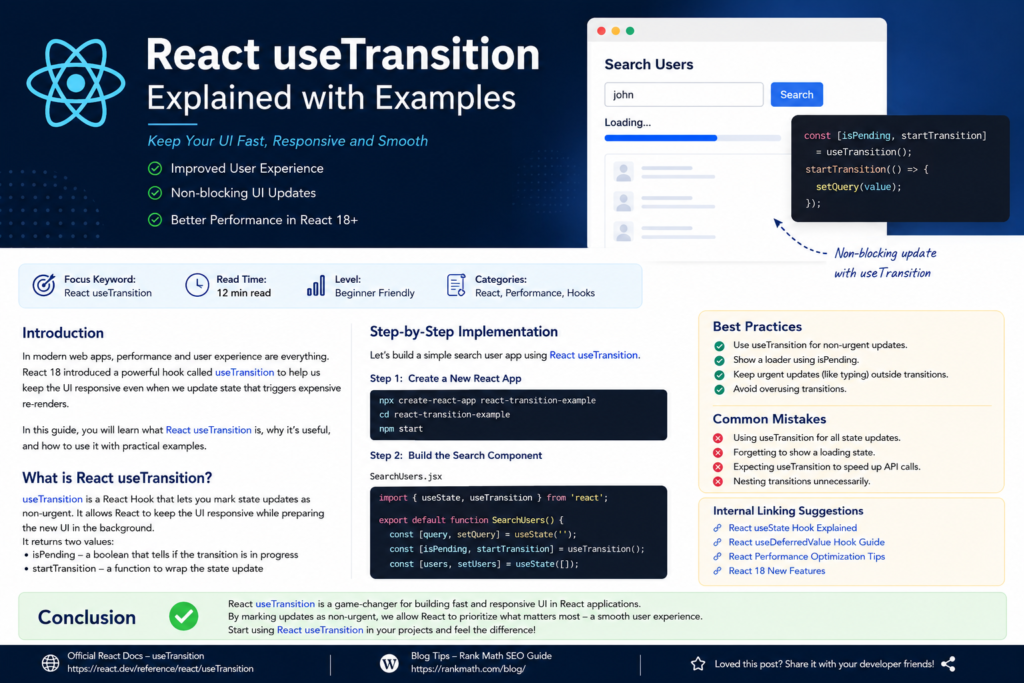
What is React useTransition?
React useTransition is a React Hook used for performance optimization. It allows you to mark some state updates as “transition” updates.
A transition update is not urgent. React can delay it slightly if there is more important work to do first.
The syntax looks like this:
const [isPending, startTransition] = useTransition();Code language: JavaScript (javascript)Here:
isPendingtells you whether the transition is still running.
startTransitionis a function used to wrap non-urgent state updates.
Example:
startTransition(() => {
  setFilteredItems(result);
});Code language: JavaScript (javascript)
This tells React: “This update is not urgent. Keep the UI responsive first.”
Why Do We Need React useTransition?
React normally updates the UI when state changes. Most of the time, this is fast. But some updates are expensive.
For example:
- Filtering thousands of records
- Rendering a large list
- Switching between heavy tabs
- Showing complex search results
- Updating charts or dashboards
- Rendering a slow component
Without React useTransition, the browser may feel stuck while React is rendering the heavy update.
Let’s take a simple example.
Suppose a user types in a search input. You have two jobs:
- Update the input value immediately.
- Filter a large list based on the search value.
The input value is urgent because the user should see each typed letter immediately.
The filtered list is not as urgent. It can update after a small delay.
This is the perfect use case for React useTransition.
React useTransition vs Normal State Update
Before using React useTransition, let’s see the normal approach.
import { useState } from "react";

const products = Array.from({ length: 10000 }, (_, index) => ({
  id: index,
  name: `Product ${index + 1}`,
}));

export default function ProductSearch() {
  const [search, setSearch] = useState("");
  const [filteredProducts, setFilteredProducts] = useState(products);

  function handleSearch(e) {
    const value = e.target.value;
    setSearch(value);

    const result = products.filter((product) =>
      product.name.toLowerCase().includes(value.toLowerCase())
    );

    setFilteredProducts(result);
  }

  return (
    <div>
      <h2>Product Search</h2>

      <input
        type="text"
        value={search}
        onChange={handleSearch}
        placeholder="Search product..."
      />

      <p>Total Products: {filteredProducts.length}</p>

      <ul>
        {filteredProducts.map((product) => (
          <li key={product.id}>{product.name}</li>
        ))}
      </ul>
    </div>
  );
}Code language: JavaScript (javascript)
This code works, but it may feel slow when the list is large. Every time the user types, React updates the input and filters the list immediately.
The input update and list update both happen together. If the list is heavy, typing can become slow.
Now let’s improve this with React useTransition.
Step-by-Step Implementation of React useTransition
Step 1: Import useTransition
First, import useTransition from React.
import { useState, useTransition } from "react";Code language: JavaScript (javascript)Step 2: Create isPending and startTransition
Inside your component, call useTransition.
const [isPending, startTransition] = useTransition();Code language: JavaScript (javascript)React’s official documentation explains that useTransition returns exactly two values: a pending state and a function to start the transition.
Step 3: Keep Urgent Update Outside startTransition
The input value should update immediately.
setSearch(value);Do not put this inside startTransition.
Step 4: Put Non-Urgent Update Inside startTransition
Filtering and updating the product list can be non-urgent.
startTransition(() => {
  const result = products.filter((product) =>
    product.name.toLowerCase().includes(value.toLowerCase())
  );

  setFilteredProducts(result);
});Code language: JavaScript (javascript)
Step 5: Show Pending Message
You can use isPending to show a loading or filtering message.
{isPending && <p>Filtering products...</p>}Code language: HTML, XML (xml)This improves user experience because the user understands that React is still processing the result.
Complete React useTransition Example
Here is the complete example:
import { useState, useTransition } from "react";

const products = Array.from({ length: 10000 }, (_, index) => ({
  id: index,
  name: `Product ${index + 1}`,
}));

export default function ProductSearch() {
  const [search, setSearch] = useState("");
  const [filteredProducts, setFilteredProducts] = useState(products);
  const [isPending, startTransition] = useTransition();

  function handleSearch(e) {
    const value = e.target.value;

    // Urgent update: input should update immediately
    setSearch(value);

    // Non-urgent update: filtering large list can wait
    startTransition(() => {
      const result = products.filter((product) =>
        product.name.toLowerCase().includes(value.toLowerCase())
      );

      setFilteredProducts(result);
    });
  }

  return (
    <div style={{ padding: "20px" }}>
      <h2>React useTransition Product Search</h2>

      <input
        type="text"
        value={search}
        onChange={handleSearch}
        placeholder="Search product..."
        style={{
          padding: "10px",
          width: "300px",
          marginBottom: "10px",
        }}
      />

      {isPending && <p>Filtering products...</p>}

      <p>Total Products: {filteredProducts.length}</p>

      <ul>
        {filteredProducts.slice(0, 100).map((product) => (
          <li key={product.id}>{product.name}</li>
        ))}
      </ul>
    </div>
  );
}Code language: JavaScript (javascript)
In this example, the input remains responsive because setSearch(value) runs immediately. The large filtering update is wrapped inside startTransition, so React treats it as less urgent.
This is the main benefit of React useTransition.
How React useTransition Works Internally
You do not need to know React internals deeply to use React useTransition. But understanding the basic idea helps.
React gives priority to urgent updates first. Typing, clicking, and direct user actions are urgent. Heavy rendering is often less urgent.
When you use startTransition, React understands that the update can be interrupted if something more important happens.
For example, if the user types another letter while the list is still rendering, React can focus on the new input update first. Then it can continue rendering the latest list result.
That is why React useTransition is useful for keeping the user interface smooth.
React useTransition with Tab Switching Example
Another common use case is tab switching.
Suppose your page has three tabs:
- Home
- Reports
- Analytics
The Analytics tab may contain heavy charts and data. If the tab switch feels slow, you can use React useTransition.
import { useState, useTransition } from "react";

function HomeTab() {
  return <h3>Home Content</h3>;
}

function ReportsTab() {
  return <h3>Reports Content</h3>;
}

function AnalyticsTab() {
  const items = Array.from({ length: 5000 }, (_, index) => index);

  return (
    <div>
      <h3>Analytics Content</h3>
      {items.map((item) => (
        <p key={item}>Analytics Row {item}</p>
      ))}
    </div>
  );
}

export default function DashboardTabs() {
  const [tab, setTab] = useState("home");
  const [isPending, startTransition] = useTransition();

  function selectTab(nextTab) {
    startTransition(() => {
      setTab(nextTab);
    });
  }

  return (
    <div>
      <h2>Dashboard</h2>

      <button onClick={() => selectTab("home")}>Home</button>
      <button onClick={() => selectTab("reports")}>Reports</button>
      <button onClick={() => selectTab("analytics")}>Analytics</button>

      {isPending && <p>Loading tab...</p>}

      {tab === "home" && <HomeTab />}
      {tab === "reports" && <ReportsTab />}
      {tab === "analytics" && <AnalyticsTab />}
    </div>
  );
}Code language: JavaScript (javascript)
Here, changing the tab is wrapped inside startTransition. If a tab contains heavy rendering, React can keep the app more responsive.
React useTransition and startTransition Difference
React also provides startTransition as a standalone API. It is similar to useTransition, but there is one important difference: the standalone startTransition does not give you the isPending value. The official React documentation also notes that startTransition is similar to useTransition, except it does not provide a pending flag.
Use React useTransition when you want to show pending UI.
Use standalone startTransition when you only want to mark an update as non-urgent and do not need loading feedback.
Example:
import { startTransition } from "react";

startTransition(() => {
  setPage("/dashboard");
});Code language: JavaScript (javascript)
But in components, React useTransition is usually easier because you get isPending.
When Should You Use React useTransition?
Use React useTransition when:
1. You Have Expensive UI Updates
If rendering takes noticeable time, use useTransition.
Example:
startTransition(() => {
  setLargeList(filteredData);
});Code language: JavaScript (javascript)
2. You Want Input to Stay Smooth
Search inputs are a common use case.
setSearch(value);

startTransition(() => {
  setResults(filteredResults);
});Code language: JavaScript (javascript)
3. You Want to Show Pending UI
Use isPending to show feedback.
{isPending ? <p>Loading...</p> : <ProductList products={products} />}Code language: HTML, XML (xml)4. You Are Switching Heavy UI Sections
Tabs, dashboards, and reports can benefit from React useTransition.
When You Should Not Use React useTransition
Do not use React useTransition for every state update. It is not required for simple state changes.
Avoid it for:
- Updating input value directly
- Opening a small modal
- Toggling a simple dropdown
- Updating a checkbox
- Showing simple error messages
- Small components that render quickly
If an update is urgent, keep it outside startTransition.
For example, this is not a good idea:
startTransition(() => {
  setSearch(value);
});Code language: JavaScript (javascript)
The input value should update immediately. Keep it outside the transition.
Best Practices for React useTransition
1. Keep Urgent Updates Outside startTransition
Always ask: “Does the user need to see this immediately?”
If yes, do not put it inside startTransition.
Good example:
setInputValue(value);

startTransition(() => {
  setFilteredData(result);
});Code language: JavaScript (javascript)
2. Use isPending for Better User Experience
Do not leave users confused. Show a small message when the transition is running.
{isPending && <span>Updating results...</span>}Code language: HTML, XML (xml)3. Use React useTransition Only Where Needed
Do not add it everywhere. First check if the UI is actually slow.
4. Combine with Memoization When Required
For large lists, you may also need useMemo, pagination, virtualization, or backend search.
React useTransition improves rendering priority, but it does not magically make bad performance disappear.
5. Keep Components Small
If one component does too much, it will still be hard to optimize. Split heavy UI into smaller components.
Common Mistakes in React useTransition
Mistake 1: Putting Input State Inside startTransition
Wrong:
startTransition(() => {
  setSearch(value);
});Code language: JavaScript (javascript)
Correct:
setSearch(value);

startTransition(() => {
  setFilteredProducts(result);
});Code language: JavaScript (javascript)
Mistake 2: Expecting useTransition to Reduce API Time
React useTransition does not make your API faster. It helps React manage rendering priority.
If your API is slow, you still need:
- Backend optimization
- Caching
- Pagination
- Better database queries
- Loading states
Mistake 3: Using useTransition for Small Updates
If the update is already fast, useTransition may not give a visible benefit.
Mistake 4: Not Showing Pending UI
If you use useTransition, use isPending when it helps.
{isPending && <p>Please wait...</p>}Code language: HTML, XML (xml)Mistake 5: Thinking useTransition is for Animation
The word “transition” can be confusing. React useTransition is not for CSS animation. It is for marking some React updates as less urgent.
React useTransition in React 19
React 19 improved transitions by supporting async functions in transitions for handling pending states and related async UI flows. The official React 19 announcement mentions support for async functions in transitions to help with pending states, errors, forms, and optimistic updates.
However, for beginners, the most important concept is still the same:
Use React useTransition when you want to keep urgent UI updates fast while allowing slower updates to happen as transitions.
Conclusion
React useTransition is a useful hook for improving UI responsiveness in React applications. It helps you mark some updates as non-urgent so React can keep important interactions smooth.
Use it when your app has slow rendering, large lists, heavy tabs, or expensive UI updates. Keep urgent updates like input typing outside startTransition, and wrap slower updates inside it.
The main idea is simple:
Urgent update = do immediately.
Non-urgent update = wrap inside startTransition.
If you are learning React performance optimization, React useTransition is an important concept to understand. It can help you build smoother, faster, and more user-friendly React applications.